Interesting article about the UK out of the EU from a tech point of view:
Brexit…From a Tech Point of View
Zeus Virus from PutLocker. Watch out Sheffield!
Just a quick note to say we had a customer call today who had just been infected with the ‘Zeus’ virus. It seems the likely source was a popular video streaming website called PutLocker – so watch out if you use it. The customer did the best thing and pull the power immediately, and called us. We’re in the process of trying to extract the user data, which hopefully has had the chance to get encrypted. Then we will work on either cleaning the hard drive, or wiping it completely for a fresh Windows installation (best bet to be sure any virus has gone).

Tips:
- Just got a virus? pull the power immediately, especially if it is a crypto-locker virus (as this will not give the program a change to encrypt everything).
- Use an antivirus program! Avast is a good from one and Kaspersky has been rated the best paid for one for several years.
- Backup – always backup you files. You are only as good as your last backup. Backing up to an external USB and the ‘the cloud’ is the best solution.
Image credits:
Computer glitch image from: ‘Thoth God of Knowledge‘
Icons made by Freepik from www.flaticon.com is licensed by CC 3.0 BY
Computer Laptop Cleaning Issues – General Advice for Sheffield
Computers, especially laptops can get very dirty on the inside. Over months and years dust, hair and all sorts of dirt will get sucked into the exhaust, and gradually build up (generally on the heatsink and fan blades) and make cooling the machine much more difficult for the fan. Eventually it could get to the point that the air cannot be blown over the heatsink to aid cooling, or the fan cannot physically rotate anyone – when this happens the system will overheat and shut down. Too much of this can lead to a chip overheating and permanently damaging the chip, requiring new parts which can cost a lot depending on the part.
-

Old dirty MacBook keyboard – sure can see at least coffee and ice cream here…no tell what else is there! -

Dust and dirt build up inside laptop a laptop. You can see a lot of dust around the fan intake grid.
Taking apart and cleaning a laptop can be quite a challenge. Thinking back to the very first laptop I took apart…there was a lot of sweat and it took a whole evening. We’ve recently had quite a few jobs requiring us to finish a clean up job that has gone wrong, so we thought we’d give you a little advice for those that want to do it themselves (hopefully not too late if you are reading this).
-
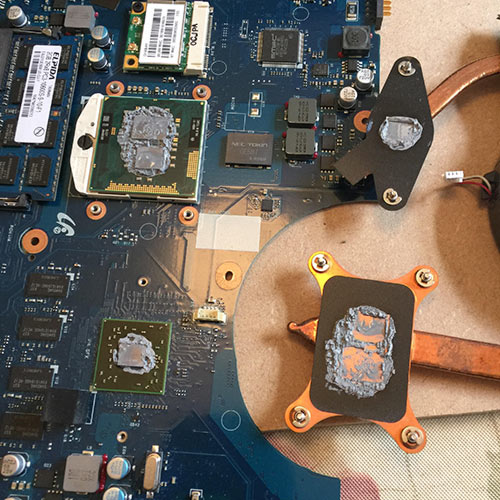
Laptop heatsink with old thermal paste on chips and heatsink -

Heat sink and chips carefully cleaned with new thermal paste on the chips
If you want to clean a laptop watch out for the following:
- Losing screws – we see so many laptops with screws missing after a DIY attempt
- Blowing into the hot air exhaust can help, but is dangerous because if there is a big dust build up it could stop the fan from rotating can cause the laptop to overheat quickly. There is a photo of this happening below
- Static electricity – clean using non-static materials and watch static from your clothes
- Remember to replace the thermal paste. This is vital. You should not just put the heatsink back on the chip with the old thermal paste – if you do chip cooling will be irregular and inefficient it’s likely to cause overheating or worse
- Scratching chip surface and damaging it, especially when cleaning or applying thermal paste
- If you use liquids to clean make not to use too much liquid and get a component flooded and also make sure everything is dry before the system is powered up again.
- Watch out for short circuiting – so easily done with tools, loose screws, not reconnecting wires etc.
- Broken screw fixings and laptop covers: Especially with aging laptops, the plastic material becomes increasingly brittle. Take great care removing and tightening screws and separating parts of the laptop body.
- Don’t forget to connecting everything back up as it was!
Prices: We charge a flat rate for fully cleaning a laptop physically inside and out. £40 if the work is done here, £49 is the job is a callout. This price includes:
-

Laptop fan not working due to a dust clog up stopping it from rotating. -

Laptop fan working after dust removal – nothing is blocking the fan’s rotation now
- Full outside clean including:
- Case
- Screen
- Keyboard
- USB / power / VGA ports etc.
- Full inside clean including:
- All components
- The case
- Fan
- Heatsink
- Replacement thermal paste
- Putting the laptop back together again.
Laptop LCD Screen Replacement and Repair Dangers – Often the Job is More Complicated than Expected
One of our most popular services in Sheffield is laptop screen replacement. Details of services including prices we offer can be found on our Sheffield laptop screen / lcd replacement and repair page. It’s not as easy a job as many think which is why customers come to us to get the job done properly. There are many pitfalls to watch out for it you attempt to do the job yourself including,
- Ordering the wrong replacement part – many laptops have two different types of screens LCD or CCFL which can be used in the same model
- There are no ‘official’ replacements parts easily available for a decent price…which is to be expected, especially for an older models, but getting a good quality replacement without any dead pixels is important. A dead pixel is one or more pixels (of 1,049,088 on a standard laptop screen) that is defective (usually manifesting as a black dot). Some people wouldn’t even notice, others like ourselves would be infuriated with even just 1/1,049,088th of a screen being ‘dead’, so we have worked hard collecting an excellent range of top-quality suppliers which has allowed us to provide customers with 100% perfect screens. Touch-wood, this will always be the case
- Ensuring you have all the parts. Many laptop screens require a power converter. This many be the defective part, rather than the LCD screen…it’s hard to tell.
- Incorrect removal of the existing screen and installation of the replacement. To avoid damaging the bezel and LCD casing a lot of care is need to ensure that a screen can be fitted again correctly and no other damaged is caused. Remembering the first screen replacement jobs we ever did to our own machines, the process took hours…only research, experience, care and patience can ensure everything goes perfectly
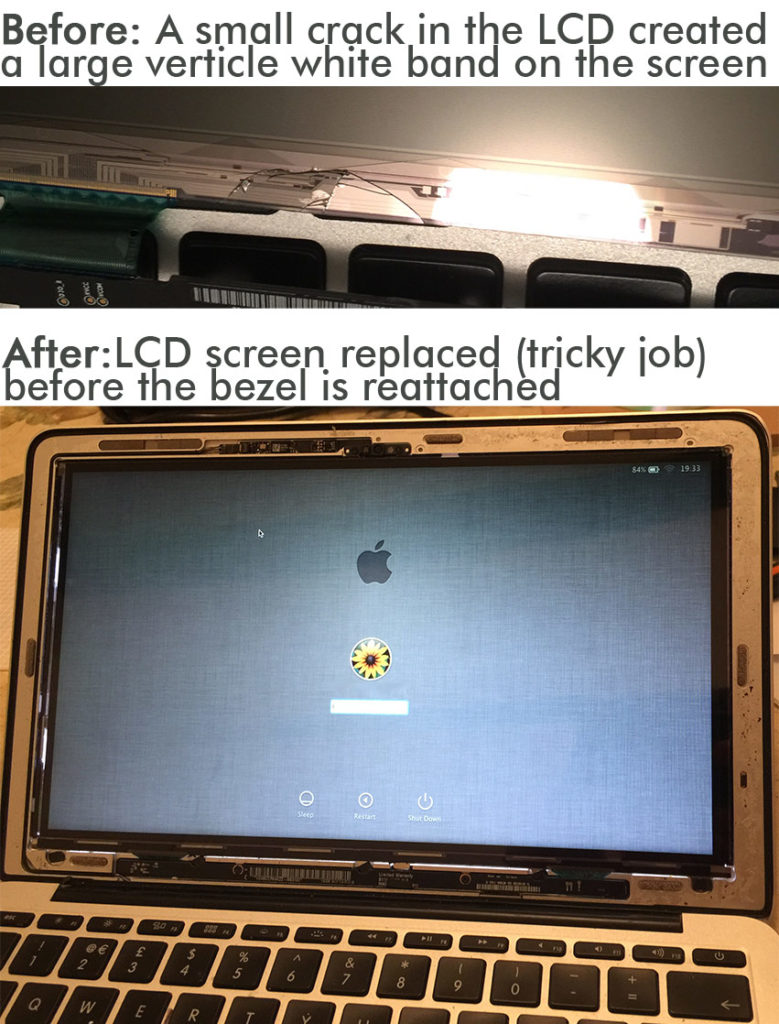
- Working with the new replacement screen can be tricky. A customer came to us after attempting to replace a MacBook Air screen when they had tried to remove a layer of protect plastic but in fact started to remove part of the LCD screen!
- Scratching the screen – so easily done… A good methodical and careful technique is vital.
- Dust in the screen – especially a problem for Macbooks, Macbook Pros and MacBook Airs. Dust in-between the screen and glass panel looks terrible.
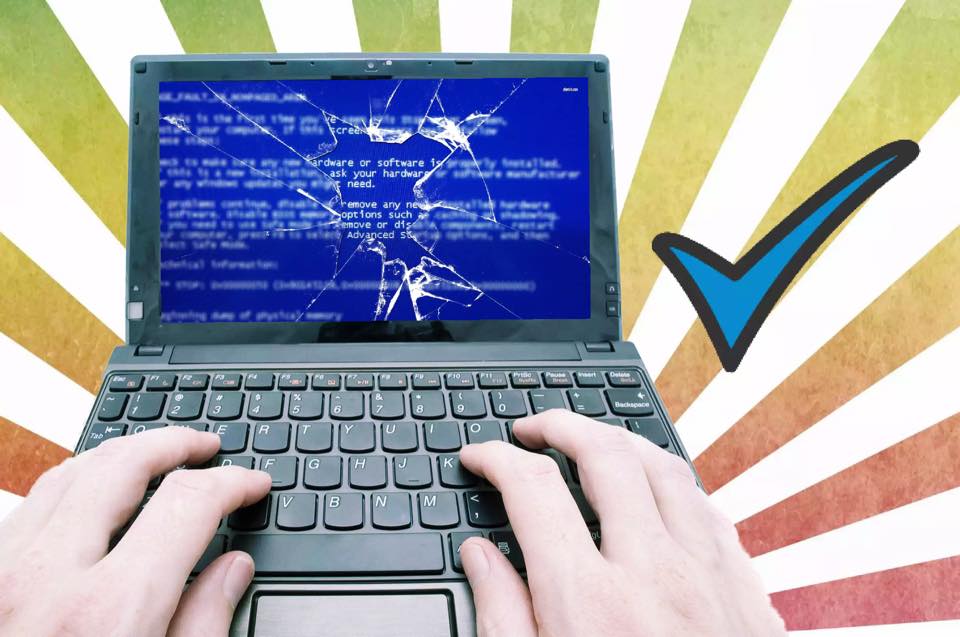
Mac Pro (Old but Still Powerful) – no Video Signal: Graphics Card Replacement Sheffield
We had an old beast of a machine in the workshop for repair today – a Mac Pro “Quad Core” 3.0GHz Intel Xeon 5160. The diagnosis at the Apple shop was a faulty graphics card but they wouldn’t work on it because it was ‘Obsolete’ being made n 2008.
Despite being somewhat old we discussed the option of upgrading the graphics card but decided to go for a straight swap because the workstation graphics weren’t being utilised much anyway. We sourced a replacement ATI Radeon x1900 XT 512MB from our suppliers and got it working again. We also checked over the OS doing all the necessary maintenance after 8 years of work.
-
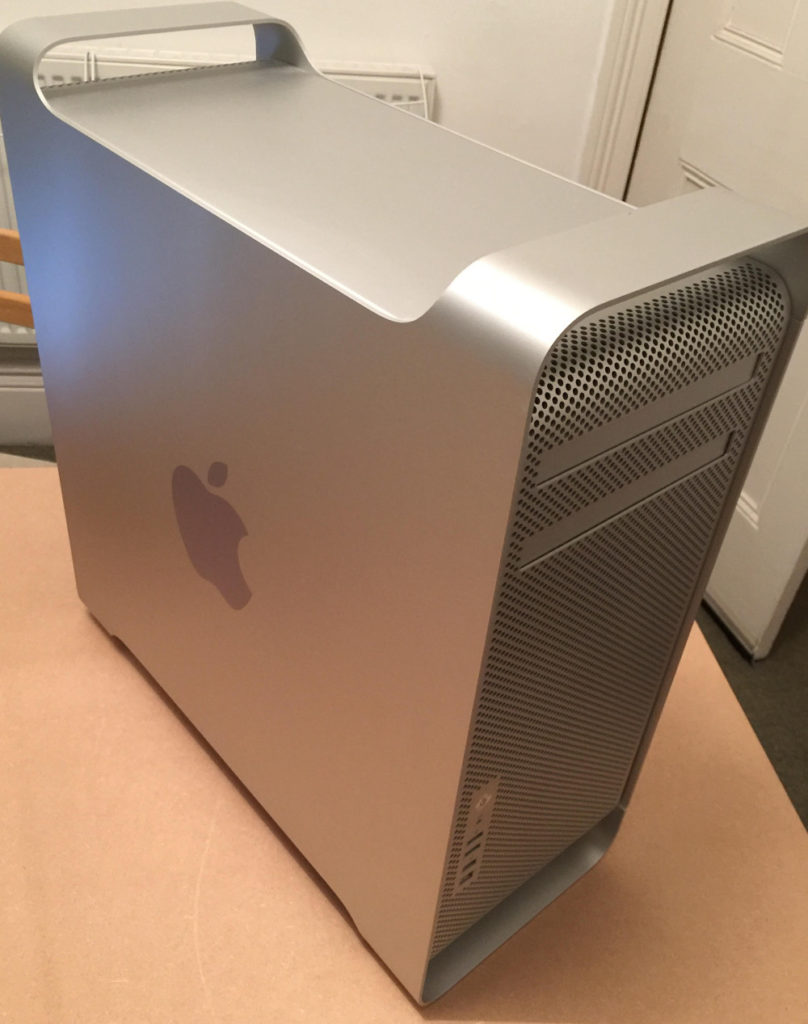
Apple Mac Pro 2008 -

Case opened up -

Graphics card removed (it’s a tricky removal) -

Offending graphics card to be replaced.
‘Phishing’ – Some Advice on Ataying Safe and Avoiding Scams
We speak to many customers who have had bad experiences dealing with companies/individuals claiming to be someone else. The worst of these stories usually ended with a fair bit of money lost, and the horrible feelings being scammed leaves (lower self-confidence, increased scepticism, worries about future security etc.). We thought it was time to write a little bit about ‘phishing’ and scams relating to computers.

Phishing (Pronounced, ‘fishing’)
Definition: “the fraudulent practice of sending emails purporting to be from reputable companies in order to induce individuals to reveal personal information, such as passwords and credit card numbers, online.” For this article, we also consider telephone calls as well as email contact methods.
Top ‘scams’ we come across
- Phone calls from [insert big company here] claiming something is wrong with your computer. The victim is tricked into giving remote access to the scammer who shows some errors/viruses/problems on their screen and then the user is required to pay a large amount of money for any fixes required.
- Phone calls to [insert big company here] – there are many websites pertaining to be a company they are not. Person with problem calls big company, they fix the problem (maybe quickly, maybe making a mountain out of it) and charge a large sum of money. If you are paying for a service, you can probably get through to them on the phone but you shouldn’t expect to pay. If you use a free service such as Gmail, Hotmail, Yahoo Mail I don’t think there are any ways to phone those companies/departments directly and free services don’t offer ‘pay help’ – they would more than likely more you to a ‘pay tariff’ which includes support (and instructions on how to use it).
- Emails from the similar companies (often linked to a financial service such as your bank, PayPal, Amazon etc.) claiming your account has been hacked. Best thing here is to have a strong password to begin with that means it is much harder to hack (think long mixed case alphanumeric non dictionary combinations). Second thing to do, if you really do think the email is genuine, is to ignore the email entirely and open you web browser and log into to services/website as you would normally do. You can expect to be alerted to any problems after logging in or by looking at the ‘my account’ section. Clicking on a link in an email can take you to a genuine looking website and you can easily be tricked into giving your details away. Using the hyper link or viewing images in an email can also alert the send so they know your email address is active (so they can send more spam).
- Similarly, the police won’t send you an email if they think you have/are committing a crime. They definitely will not give you an option to pay to get out of a crime (without you going to court). A classic virus, the Metropolitan Police Virus, says you’ve been looking at inappropriate material (animal/child porn) and locks you out of the computer until you pay a ransom fee. If anything pops on the computer claiming to be from the Police, check with the police themselves or give us a bell – sometimes it may be too late, other times the situation can be rectified.
Things to consider to stay out of trouble / best practice guidance
- Use strong unique passwords. Harder to hack any account and allow a scam to be engineered.
- Changing your password, often. A good idea, but realistically perhaps at least once a year. If you suspect any account/service you use has been compromise change the password immediately.
- Stay away from ‘dodgy’ websites such as steaming video sites, live football, porn sites, pirate software/video download sites etc. These are prime places to catch a virus/hack. If you must use these, find trustworthy ones (a trustworthy pirating/streaming site doesn’t seem likely but some are run by people with interesting ethical opinions).
- Learn what popups look like from (these are generally the only popups you should see, so ignore and close (x in the top right) any others):
- your antivirus program
- Microsoft Windows / MacOS
- your web browser
- any other programs you have installed to run in the background such as CCleaner.
- There are loads of websites that create popups designed to make you think it is a legitimate program installed on your computer or from a trustworthy company. Be cautious, assume the worst and ignore – if you restart the computer and it appears again (when you do something else on the machine) it’s more likely to be legitimate. Knowing what is good/bad here is easier said than done and we appreciate it comes with experience and knowledge.
- Read more about viruses and online safety.
Things to consider if you feel like something isn’t right
If you think you have been scammed out of money call your bank immediately to inform them. They get this sort of thing all the time. Banks can protect you account but only if you tell them too. Likewise, if you paid by credit/debit card, call the card issuer, tell them what happened and request a new card. We do a lot of credit/debit card transactions online and get replacement cards regularly to be safe (every 6-12 months). Using a credit card online usually offers you more protection than a debit card but investigate your card issuers to see which gives you the best cover and use that card online.
Cold call/email? Behave like you would if someone turned up from your house claiming to be from British Gas. You wouldn’t call a number that they provided you to verify them – you would find the number for British Gas in the phone book or online and call that. Do the same for computer companies.
Before letting anyone take control of your computer, be 100% sure they are who they say they are and you can trust them. Once you have handed control over the remote person could do anything very quickly. There is no way to say for certain that the computer is clean and safe after someone has been on it without wiping it completely or through a costly very inspection/observation.
Companies probably wont call you…unless you are already in a dialogue with them (or somehow manage to owe them money).
- Microsoft won’t ring you about Windows.
- Not heard of Apple calling anyone.
- Google won’t ring you, and there is no telephone support for Gmail problems. We believe this is the same for Microsoft’s Hotmail/Live/Outlook accounts.
- If you are paying for advertising, contractors do work for Google and Microsoft.
Your WiFi, phones and computers can’t infect your neighbours equipment.
Always ask how much the work is going to cost before letting it happen. To give you an idea of prices, Sheffield Computer Services nearly always charge far less than £100 to fix any problem (excluding hardware costs). Sometimes bills have been larger but on those occasions it tends to be a ‘fix everyone’s laptop, the family desktop, set up an iPad, iPhone and smart TV’ type of job. A good company will stick to their quote or warn you if the cost is going to increase.
If you’re paying for a service (antivirus, software suite etc.) the price of support is usually included.
If you are in a contract with a company and you end up in a situation such as ‘owing’ them money for a remote fix and you feel things are wrong, tell them. Tell them that you will call them back and settle the bills – they must be able to put the bill ‘on the system’ so you can settle it later by calling a number on their official website.
Remember, take a cautious approach, and if in doubt give us a call.
How to Rotate (Un-Rotate) Your Laptop / Desktop Screen
If you manage to get your screen get rotated, its easy to fix on a Windows PC: Simply press CTRL + ALT + [an arrow key] until things return to normal.

Icons made by Freepik from www.flaticon.com is licensed by CC BY 3.0
Apple Mac Anti-Virus: Do I Need One?
Should I get an anti-virus for my Apple Mac is a question we don’t get asked often…but one that perhaps should be asked more often.
Macs, be it an iMac or Macbook, have long had a reputation of being immune to virus’, and for good reasons, including:
- The operating system has been a lot more secure than it’s equivalent Windows version,
- Not many virus’ had been written for Macs because that system was never very popular, in relative terms, compared to Windows machines (why write a virus for a system which isn’t used widely?)
- Mac users have classically been more than causal computer users more able avoid actions likely to result in a virus.
- Mac users have tended to be wealthier than Windows users and consequently more likely to pay for reputable software which helps to avoid infected freeware that plagues free software on Windows PCs.
Things change, and now many of the above points are far less true. Macs are still pretty secure, but the massive increase in popularity has attracted attention of virus writers. Users of Macs now include not just experienced computer users, but everyone. Ultimately, a computer is only as secure as operations completed on it by the user.
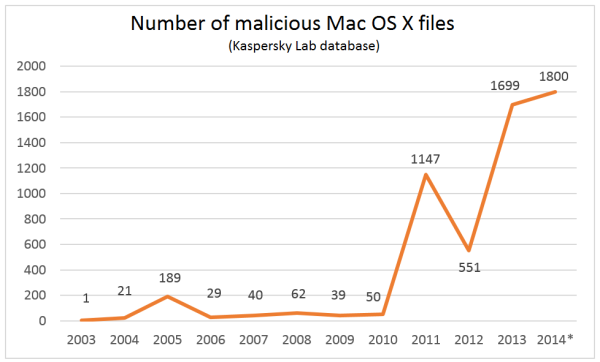
The graph from Kaspersky above shows the increase in Malware in Macs over time. It shows that there in a vast increase in Mac infections over the recent years.
It seems fairly obvious that anything to help keep you Mac secure would be a good idea. Sheffield Computer Services recommends getting an antivirus program for your Mac.
Two anti virus programs that consistently score well in tests are:
- Avast from https://www.avast.com/en-gb/free-mac-security (you can also pay for a full version.
- Kaspersky from www.kaspersky.co.uk/mac-security (paid only version)
Why not get some protection? None are 100% perfect, but certainly better than none. Prevention better than cure. Etc. Etc.
What ever you do, make sure you keep backups of your files and programs. Either copy things manually to a USB stick or hard drive, or use ‘Time Machine’ (set up via the settings panel) to do it automatically for you.
If you need some help setting things up, just get in contact with us on 01144070128, 07552380585 or help@sheffieldcomputerservices.co.uk.
Icons made by Freepik from www.flaticon.com is licensed by CC BY 3.0
iPhone iOS9 Surprising Mobile Data Usage… Watch Out!!
Just a quick note to let you know that if you have an iPhone and you’ve upgraded to iOS9, watch out because if you have slower wifi internet speeds than mobile internet speeds, the phone will default to the fastest. So, it might default to mobile internet (3G), which could cost you a lot! Read more here: http://metro.co.uk/2015/09/28/how-to-turn-off-the-new-iphone-feature-thats-burning-through-your-data-allowance-5410918/.

Safe surfing,
Sheffield Computer Services.
